You're on a video call with a medical student who can hear the lecture, but can't follow the diagram the tutor is pointing to, the quiz won't respond to keyboard input, and the PDF notes are just scanned pages with no tags. That student isn't failing because the content is too hard. They're stuck because the course wasn't built for online learning accessibility from the start.
In medical education, that failure shows up fast. A missed caption in a pathology demo can blur a diagnosis explanation. A non-reader-friendly OSCE simulation can turn a practice session into guesswork. Accessibility isn't a side requirement here, it's part of academic rigor, patient safety thinking, and fair assessment.
Why Accessibility Matters in Online Medical Education
A third-year student preparing for a virtual surgical simulation might know the anatomy cold, but still miss the teaching point because the platform has no captions, weak contrast, or no screen-reader support. In a medical course, that's not a minor inconvenience. It changes who can participate, who can ask questions in real time, and who can show competence under pressure.
The stakes rise when the same student is preparing for a board review session or an online case conference. If the platform assumes every learner can process audio, text, and visuals at the same speed, it implicitly rewards the most privileged setup, not the most prepared learner. During the COVID-19 disruption, UNESCO estimated that 826 million learners were kept out of classrooms, and 43% of them, about 706 million, had no internet at home (UNESCO). That access gap matters even more in medicine, where missed practice time can affect confidence and performance.
Practical rule: if a learner can't access the explanation, they can't learn from it, no matter how strong the content is.
For tutors, this also affects mental strain. A student who has to fight the platform before they can study is already behind before the session starts. If that sounds familiar, it's worth pairing accessibility planning with support for workload and burnout, like the guidance in medical student mental health strategies.
Understanding Core Principles and Legal Standards
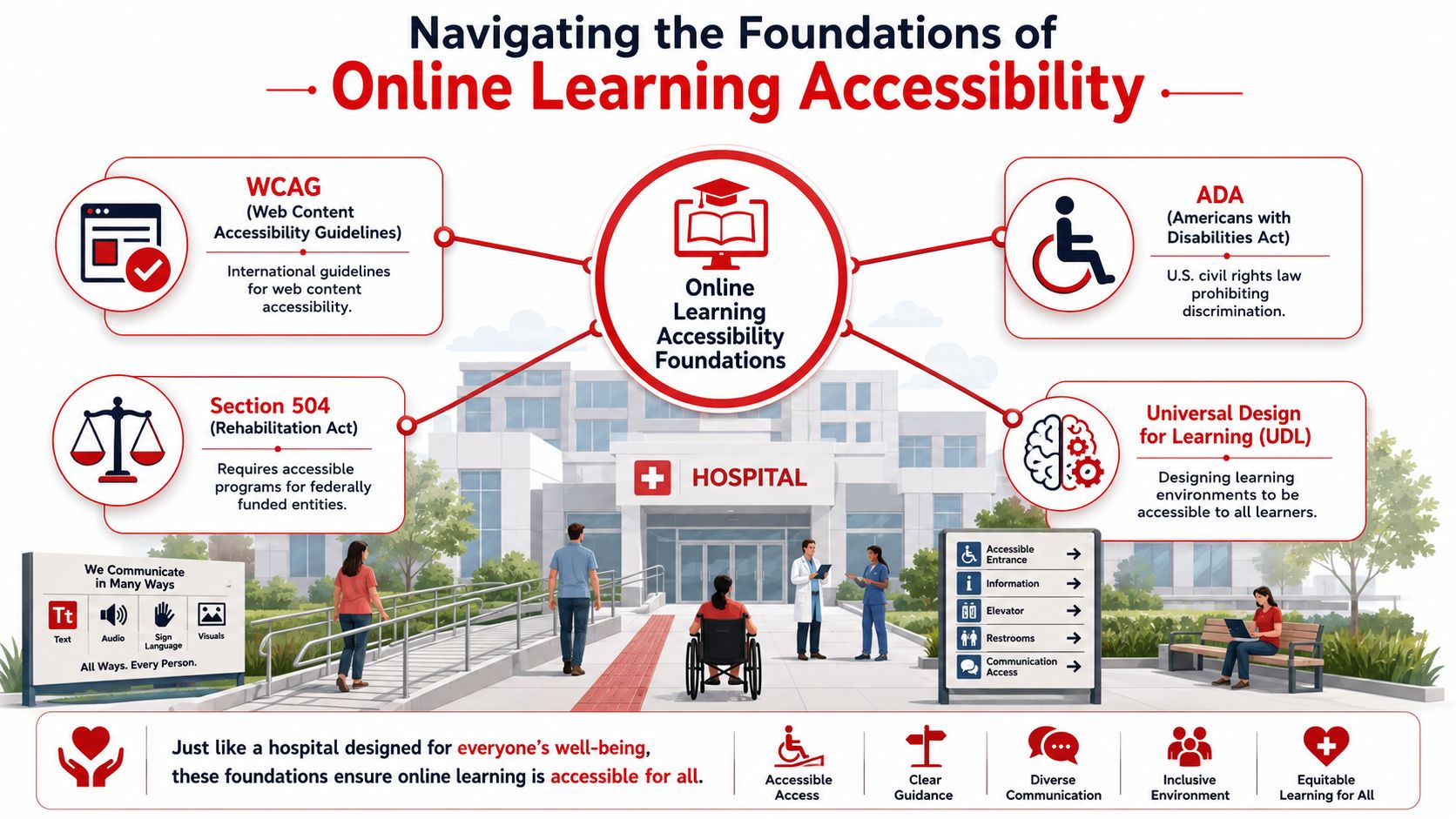
Online learning accessibility sits on two foundations, legal responsibility and usable design. In U.S. education, ADA and Section 504 shape access obligations, while WCAG and UDL give educators a practical blueprint for building materials that work for more learners. The easiest way to think about it is like hospital design. A good hospital doesn't make some people use a side entrance, it makes the main path usable, clear, and safe for everyone.
The best technical baseline is the WCAG/UDL-style design pattern. That means content should be perceivable, operable, understandable, and dependable, with keyboard access, assistive-technology compatibility, closed captions, transcripts, alt text, and legible typography at a minimum 16 px font size (Digital Learning Institute). In plain language, a learner should be able to see it, reach it, understand it, and use it with the tools they have.
What the standards mean in practice
A captioned cardiology video is not just “nice to have,” it's the accessible version of the lecture. A tagged PDF with headings is not decoration, it's the digital equivalent of a clean chart that can be read in order. If a quiz can only be completed with a mouse, or a simulation only works when every asset loads perfectly, the course is fragile by design.
Think hospital-wide access, not special exceptions. If ramps, signs, and communication formats are baked into the building, fewer people need separate workarounds later.
That's why legal compliance and good pedagogy overlap so strongly. A course can technically meet a policy checklist and still frustrate students if the design is clunky. The goal isn't just avoiding complaints. It's building a learning environment where accessibility is part of the default workflow, not a rescue mission after students get blocked.
For course teams managing student data while making these changes, the privacy angle matters too, especially when accessibility tools collect user information. Ace Med Boards' data privacy guidance is a useful reminder that inclusive design and responsible data handling should travel together.
Identifying Common Barriers in Medical Online Learning
In medical education, accessibility barriers often hide inside the materials that look polished at first glance. A lecture may be well-produced but useless without captions. A clinical image may be visually clear but completely opaque to a screen reader. A simulation may feel interactive, yet still fail the student who can't use a mouse or loses access because the platform won't load on a weaker connection.
The biggest barrier is often inaccessible technology plus lack of reliable internet and devices, and AFB says those challenges are reported most frequently by learners with disabilities (AFB). In medical tutoring, that means the issue is rarely just the video itself. It's the entire chain, device, bandwidth, platform, and user training.
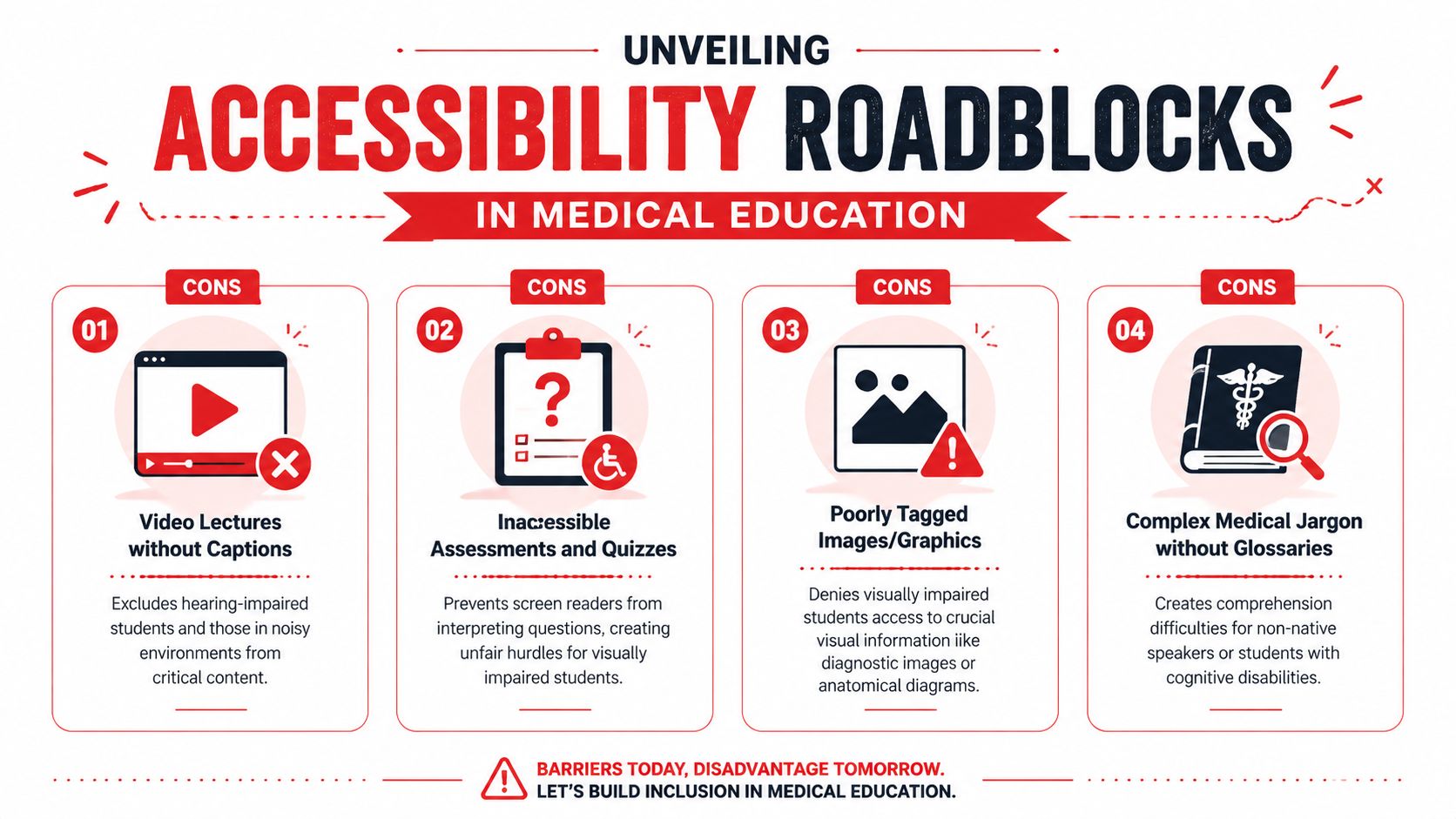
Four barriers that show up again and again
- Video lectures without captions. A student in a shared apartment, a hospital break room, or a noisy library can't always rely on sound alone.
- Inaccessible assessments and quizzes. If screen readers can't interpret the questions or answer choices cleanly, the test measures platform fluency instead of medical knowledge.
- Poorly tagged images and graphics. A chest X-ray or anatomy diagram without meaningful alt text leaves visually impaired students out of the explanation.
- Complex medical jargon without glossaries. Dense terminology can create avoidable friction for non-native speakers and students with cognitive disabilities.
The overlooked part is that these barriers compound. A student may manage captions but still get blocked by poorly labeled links in the slide deck. They may get through the lecture without difficulty, then hit a wall in the practice quiz. For a structured companion to visual study barriers, see visual learner study tips, especially if you're rebuilding content around diagrams and case images.
Examples of Accessibility Challenges and Successes
A tutoring team once ran OSCE-style practice sessions over video and assumed the live format was enough. The students could hear the prompts, but the key instructions and case cues were buried in spoken narration, so anyone who needed transcripts or slower review had to ask for separate help. That extra step sounds small, but in a high-stakes medical context it changes confidence, speed, and independence.
A 2025 study pushed the discussion beyond disability-only framing by showing that infrastructural challenges and gendered constraints like monthly cycles can affect participation across income levels (PMC study). That matters in medicine because access isn't only about whether a learner can hear the lecture. It's also about whether they can attend, concentrate, and return to the material when their schedule or environment changes.
Another program improved uptake by offering the same content in more than one format, including low-bandwidth delivery and mobile-friendly files. The point wasn't to water down the material. It was to remove the false choice between rigor and reach. Students still got the same core explanation, but they could consume it in a way that fit their day.
For an example of platform-based course delivery that can be structured around flexibility, interactive learning platforms show why format matters as much as content quality.
Implementing Practical Accessibility Strategies
Start with the video library, because that's usually the fastest win. Add closed captions and transcripts to every lecture, lab demo, and case review. If a pathology video includes the tutor narrating a slide, the transcript should capture the language clearly enough that a student can study from it later, not just skim the gist.
Build the content students actually need
Accessible PDFs and slide decks need real structure, not screenshots pasted into a document. Use headings, readable fonts, logical reading order, and tagged elements so screen readers can move through the material without chaos. If you're sharing radiology images, label them with descriptive alt text that explains what matters clinically, not just what the picture looks like.
A good accessibility test is simple. Can a student use the material without a mouse, without perfect hearing, and without guessing what a visual means?
For tutors who create their own transcripts from recorded lectures, ClassLecture.ai for lecture transcripts can be a practical starting point when you need a text version to review and edit for accuracy.
Make the interface usable under pressure
Keyboard navigation matters in question banks, case discussions, and simulation controls. If a learner can't tab through answer choices or submit an activity without a mouse, the course has a built-in barrier. Screen-reader compatibility should be checked asset by asset, because accessibility often breaks at the level of a single unlabeled button or a badly named link, not the whole site.
Use inclusive pedagogy too. Give students multiple ways to process the same concept, such as a spoken explanation, a labeled diagram, and a short written summary. That's especially useful in medicine, where a pharmacology mechanism or a surgical step may need repetition in more than one format before it sticks.
If your team is building asynchronous materials, asynchronous learning advantages can help you match format to learner schedule without losing rigor. For many tutors, that flexibility is the bridge between access and completion.
Managing Accommodations for Exams and Clinical Training
A student requesting accommodations for a high-stakes medical exam needs a different process than someone adjusting for a routine lecture. A learner preparing for USMLE or COMLEX should gather documentation early, work through disability services, and match the accommodation to the barrier they experience. Extra time, alternate formats, or a quiet testing room only help if the exam platform and proctoring setup can support them without creating a new obstacle.
Match the accommodation to the task
A timed question bank, a virtual clinical skills lab, and a long written exam each create different access needs. A student who needs enlarged text may also need a cleaner interface, because crowded screens can make reading harder even when the font is larger. A student who needs extra processing time may also need a proctor who understands that the accommodation should be applied without stopping the exam flow.
Medical tutors should not improvise accommodations on test day. A better approach is to record the format the student uses best, note where the platform breaks down, and share that information with the school or testing service before the assessment begins. In clinical simulations, that may mean giving transcripts for case prompts, allowing keyboard-only movement, or letting students review a scenario before the live performance stage. Digital Promise also emphasizes that accessibility work has to account for pacing, stress, and the realities students face outside the screen.
Best practice: write down the barrier first, then choose the accommodation. That keeps the fix tied to function, not guesswork.
Communicate clearly with everyone involved
Students usually do better when they have one clear record of what is approved, who is responsible, and how the setup will work. Tutors can help by using plain language in emails to proctors and course staff, for example, naming the screen-reader friendly format, the extra time window, or the alternate file type being used. That reduces back-and-forth and keeps attention on the assessment itself, not the logistics around it.
A lot of course-level accessibility gets missed because teams focus on checkboxes instead of workflow. Digital Promise notes that schools need to work with special educators to implement IEPs and 504 plans remotely, while also considering pacing, family constraints, and stress at home. In medical training, that difference matters because a technically available exam is not the same as an exam a student can complete fairly.
Conducting Accessibility Audits and Creating Checklists
A lecture recording gets posted after midnight, then a student opens the file and finds no transcript, no captions, and a slide deck full of unlabeled images. The course may look finished from the instructor side, yet that student cannot fully use it. Accessibility changes over time, so audits need to happen again and again, asset by asset, instead of as a one-time clean-up.
The most practical place to begin is a content inventory. List every video, document, quiz, image, discussion board, and simulation module, then review each item against the same basic question: can a learner perceive it, operate it, understand it, and use it reliably with assistive tools? That approach works well in medical education because barriers often hide in single links, charts, transcripts, or video files rather than in the platform as a whole.
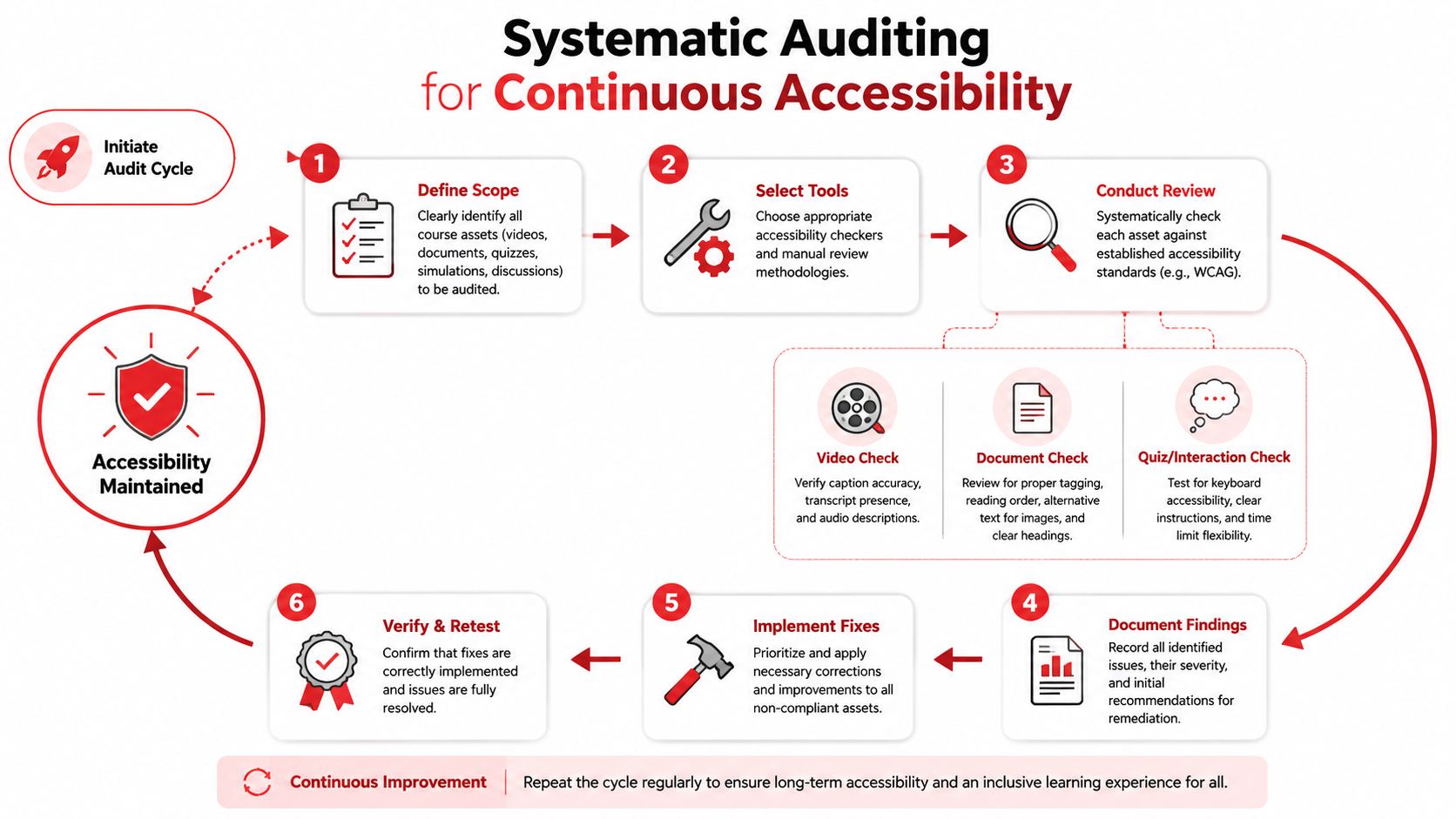
A practical audit checklist
- Unique link names. Every link should tell the student where it goes.
- Nondecorative alt text. Every meaningful image needs a text equivalent.
- Transcript availability. Every video should have a usable transcript.
- Color and contrast. Text should remain readable on the chosen background.
- Keyboard focus order. Students should be able to move through the page logically.
- Caption accuracy. Auto-captions need human review before release.
A checklist helps, but the greatest value comes from closing the loop. Record what failed, correct it, then test the item again the way a student would encounter it. In high-stakes medical exams and clinical simulations, that second check matters because a feature can pass a technical scan and still fail a learner under timed pressure or in a busy assessment environment.
Keep the review tied to the course workflow. Reviewers should not only scan for missing captions or poor contrast, they should also confirm that instructors, proctors, and support staff know what the accessible version is supposed to look like and who is responsible for fixing problems. That level of coordination matters because compliance checklists can miss course-level barriers that only show up when people, materials, and assessment rules interact.
Resources and Next Steps for Tutors and Students
The fastest way to improve online learning accessibility is to split the work into phases. Start with quick wins, captions, transcripts, alt text, and readable slide decks. Then move to platform-level fixes, keyboard navigation, better PDFs, and cleaner quiz design. After that, align policy, staff training, and auditing so accessibility becomes part of course production instead of a last-minute patch.
Tutors can also lean on a small toolkit rather than trying to solve everything by hand. Use WCAG checklists when reviewing a course shell, document templates that preserve headings and reading order, and transcript workflows for lecture recordings. If your course includes medical case images, build a habit of writing the alt text at the same time you upload the file, not a week later.
For students, the next step is to name the barrier precisely. Is it the video, the quiz, the schedule, the file format, or the device requirement? Once you can name the problem, you can ask for the right fix instead of a vague “accessibility” request that gets ignored.
A practical route for tutors working in medical exam prep is to pair content review with service design. That means choosing tools that support transcripts, captions, accessible handouts, and flexible scheduling, then checking every update before students see it. Ace Med Boards can fit into that broader workflow as one online tutoring option for students who need structured medical exam support with accessibility in mind.
If you're tutoring medical students or preparing for boards yourself, use this guide as a checklist for your next session, not a theory piece. Review one lecture, one quiz, and one handout today, fix the biggest barrier you find, and then build from there with Ace Med Boards.